Getting started
Account and email confirmation
Create your account and recover access when needed.
Before you begin
Use an email address you can open and a password with at least 6 characters.
What to do
- On the sign-in page, select Sign up for free.
- Fill in Email with your address.
- Fill in Password with your chosen password.
- Select Create Account. Check your email explains the next action.
- Open the confirmation link in your inbox.
- Return to the sign-in page using Sign in.
- Use your email and password with Sign in to Dashboard.
Sign-in page
Example data
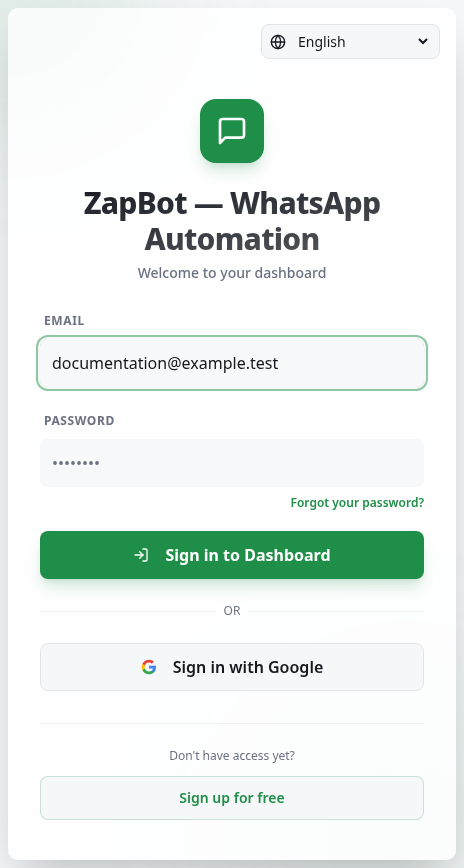
Worked example
Fictional example: someone registers with their personal email and confirms the link before signing in. On a shared computer, they select Sign out when finished.
How to check it worked
After email confirmation, Sign in to Dashboard opens your account. A password change displays a success confirmation.
What to know
- To recover access, select Forgot your password?, enter your email, and press Send link. Open the latest email, fill in New password and Confirm password, and press Reset password.
- To change your password while signed in, open Settings, fill in Change Password, and press Change. Sign out ends dashboard access on that computer.
- Sign in with Google is another access option. The confirmation screen does not reveal whether an email already has an account.
Common problems
- What you see
- The email has not arrived.
- What to do
- Check the address spelling and spam folder; wait before trying again.
- What to expect
- You find the email or can try again without repeated requests.
- What you see
- The recovery link has expired.
- What to do
- Select Request a new link and use the latest email.
- What to expect
- The new link opens the New password form.
- What you see
- Passwords do not match.
- What to do
- Enter the same new password in both fields.
- What to expect
- Reset password accepts the confirmation.
Get more help
If the problem continues, tell support the displayed message; do not send your password or recovery link.