Contacts and groups
Save a contact list
Keep a named set of phone numbers for later campaigns or group additions.
Before you begin
Use complete numbers with country and area codes. CSV, TXT and TSV are text files with rows or columns. Use Comfort for file import and editing.
What to do
- Open Contacts and choose Saved lists in Comfort.
- Choose New list. The list form opens.
- Enter a name that explains who belongs in the list.
- Paste complete numbers into Numbers, or select a file with Import CSV/TXT. Import fills the form; it does not save a list.
- Review the detected count and the numbers in the form. Remove unwanted repetitions before saving.
- Choose Save list. The new list appears among your saved lists.
- Use the edit action to change numbers or the CSV export action to download a copy.
Contact import form
Example data
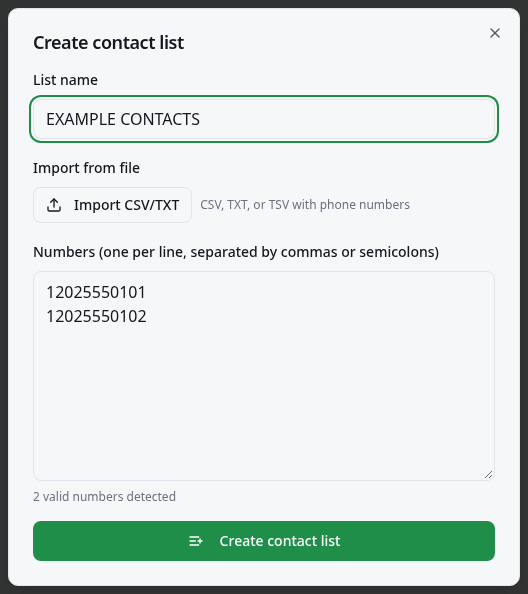
Worked example
Fictional example: name the list Workshop reminders. A TXT file contains 5511999990001 and 5511999990002 on separate lines. Import into an empty form, then save. Replace these samples with intended contacts before sending.
How to check it worked
The saved card shows the expected name and count. Reopen it to check the numbers before using it in a campaign.
What to know
- Comfort paste and save keep repeated numbers. File import removes repetitions within that file, then adds its numbers to existing form text; it can repeat a number already there. Console Pro paste removes repetitions through its own save path.
- Numbers must contain 10–15 digits. A saved list allows up to 50,000 contacts; a campaign allows up to 10,000. A valid format does not confirm WhatsApp registration.
- To add a saved list to a group, choose Add list to group on that list in either layout. Select the account and existing group, review the list version, numbers and exclusions, then save the addition queue. The 1,000-number addition limit is smaller than the saved-list limit; oversized lists are rejected rather than silently shortened.
Common problems
- What you see
- No valid numbers were found.
- What to do
- Check country codes and remove short extensions or group identifiers from the file.
- What to expect
- Complete numbers appear in the detected count.
- What you see
- The count is larger than expected.
- What to do
- Remove repeated entries from the form, including numbers added by a second import.
- What to expect
- The count matches the entries you intend to save.
Get more help
If saving fails, retain your source file and read the error before retrying. Export a copy before removing a list you may need.