Getting started
Connect and manage devices
Link a WhatsApp number and recognize when it is ready.
Before you begin
Have the phone with WhatsApp available. A device is the number connected to ZapBot. Include country code, area code, and the complete number.
What to do
- Open Devices in Comfort; in Console Pro, select Exit Console Pro.
- Select New device.
- Fill in Device name with a recognizable name.
- Select Create device.
- Fill in Phone number for pairing with your international number, using digits only.
- Select Pair to obtain the code.
- Open WhatsApp on your phone: on Android, open the three-dot menu; on iPhone, open Settings.
- Select Linked devices.
- Select Link a device.
- Select Link with phone number instead. Follow the phone unlock prompt.
- Enter the eight-character code displayed by ZapBot on the phone before it expires.
- Check Connected and Signed in on the dashboard device.
Device pairing
Example data
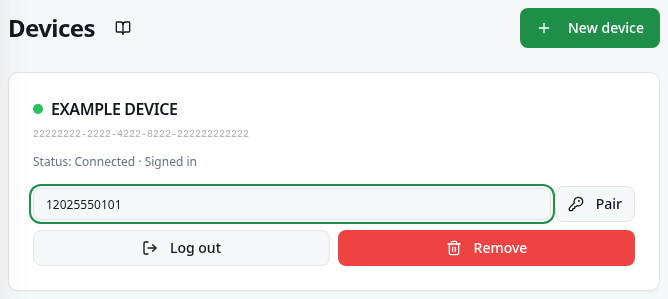
Worked example
Fictional example: create Test support for your WhatsApp number. Include 55 for Brazil, your area code, and your number; do not copy an example phone number.
How to check it worked
The same device shows Connected and Signed in. You can select it for sending features when sending access is active.
What to know
- Connected indicates the current connection; Signed in indicates that the session was linked. Neither status replaces the other.
- Reconnect attempts to recover an interrupted connection. A Signed out session requires fresh pairing. Log out ends the WhatsApp session; Remove deletes the device record.
Common problems
- What you see
- The code expired.
- What to do
- Request New code in the pairing form and enter the new code on your phone.
- What to expect
- Linking completes with the valid code.
- What you see
- It shows Disconnected but Signed in.
- What to do
- Select Reconnect and check the status again.
- What to expect
- The connection returns, or the message indicates that fresh pairing is needed.
- What you see
- It shows Signed out or an expired session.
- What to do
- In Comfort, generate a new code and repeat the phone steps.
- What to expect
- The device shows Signed in and Connected again.
Get more help
If it will not connect, tell support the device name and displayed message; do not share the code.