Sending and automation
Send a message now
Send a text test before using other message types.
Before you begin
Have an active trial or subscription and a Connected, Signed in device. Use another number you control to receive the test.
What to do
- Open Quick send.
- Choose the sending device; in Console Pro, use Send from.
- Fill in Recipient in Comfort or To in Console Pro with country code, area code, and number.
- Select Verify to check whether the number is on WhatsApp.
- In Comfort, keep Text under Type for this test. Console Pro sends text only.
- Enter the text in Message.
- Check the recipient number before sending.
- Select Send once.
- Open the conversation on the receiving phone to check the received text.
Test message
Example data
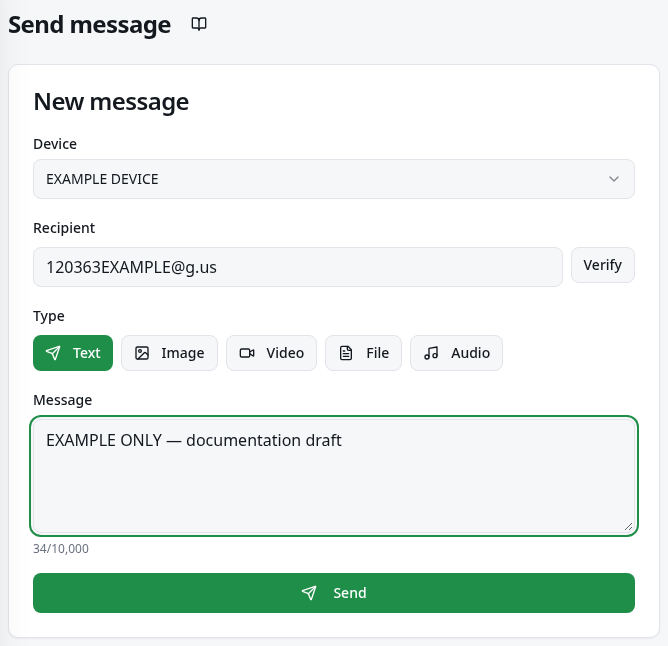
Worked example
Fictional example: select Test support and write “Testing my dashboard”. Send it to another number you control; for this first test, use no variations or file.
How to check it worked
Message sent! confirms the dashboard operation. The recipient’s conversation confirms the received text; the notice does not prove it was read.
What to know
- For media in Comfort, choose Image, Video, File, or Audio under Type and select the file. Use Caption (optional) when that field appears.
- Comfort also accepts a complete group identifier, such as groupId@g.us; this is the group’s code, not an invitation link. Individual numbers have 10–15 digits.
- Text allows up to 10,000 characters and this form’s caption up to 2,000. Console Pro Preview may show variations, but does not guarantee substitution in the outgoing text.
Common problems
- What you see
- Invalid number.
- What to do
- Check country code, area code, and complete number, with 10–15 digits for a person.
- What to expect
- Validation allows you to continue with a valid number.
- What you see
- Select a file.
- What to do
- In Comfort, select a file for your chosen type or return to Text.
- What to expect
- The form has the content needed to send.
- What you see
- Sending failed or I cannot see the message.
- What to do
- Check the device state and dashboard error; check the conversation before retrying.
- What to expect
- You avoid duplicating a received message and identify the unresolved issue.
Get more help
For blocked access, see Plans; for connection failures, see Connect devices.