Contacts and groups
Scheduled joins through invitations
Save links and schedule join attempts, one at a time.
Before you begin
Have active access, a connected device, and current invitations from administrators. Lists accept up to 1,000 unique links and 1 MiB per import.
What to do
- Open Groups.
- In Comfort, select Invitations; in Console Pro, find Scheduled group joins directly below the tables.
- Fill in Invitation list name.
- Paste one invitation per line into Invitation links, or select a file under Import TXT or CSV.
- Check valid, duplicate, and invalid counts.
- Optional: select Check pasted/imported links, choose a connected device, and select Start check. For a saved list, select it and use Check selected list.
- Keep the page open. When checking ends, download the TXT files or select Use confirmed links in a new list. This fills the form; name and save the new list.
- Correct invalid items before saving.
- Select Save. This stores the list without starting joins.
- Choose the list under Saved invitation lists in the Schedule joins form.
- Select the device that will join the groups.
- Fill in Start date and time using the time zone shown on screen.
- Fill in Interval in minutes (1–1,440) with a whole number.
- Select Schedule joins.
- Open Invitation results on the queue to follow each attempt.
Invitation queue
Example data
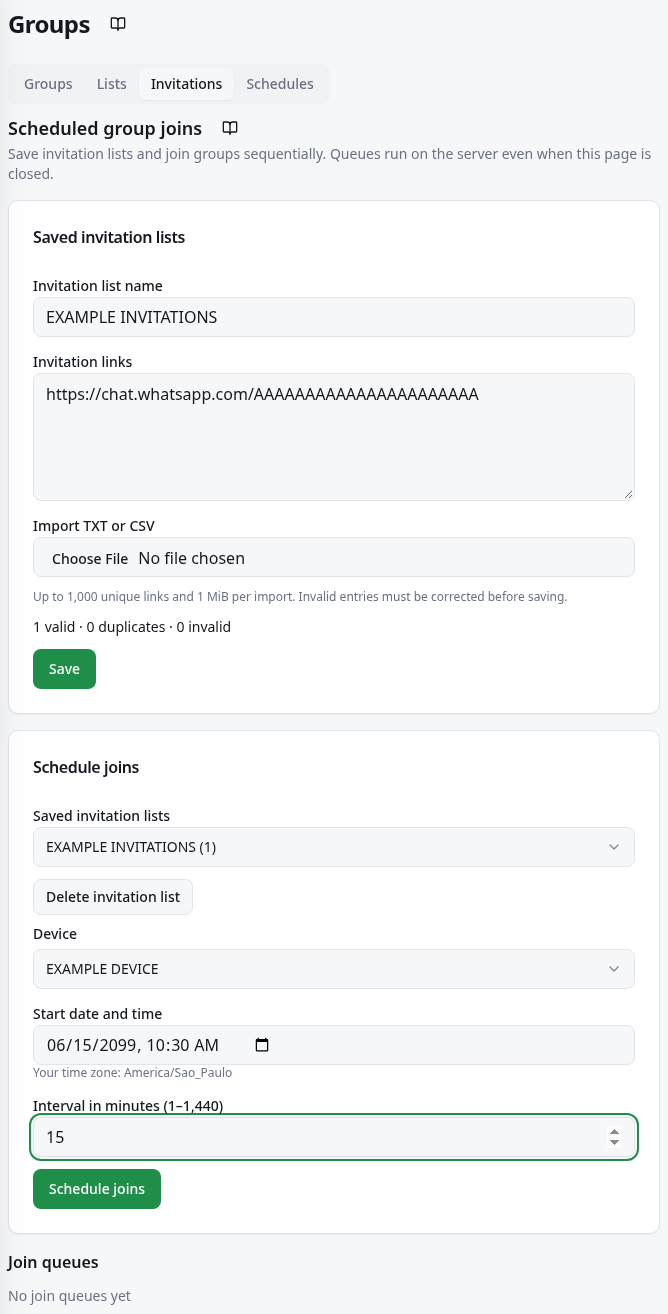
Worked example
Fictional example: Test groups list with two current invitations to your groups, tomorrow at 10 am in the displayed time zone, and a 5-minute interval. Save creates only the list; Schedule joins creates the queue. Do not copy example links.
How to check it worked
The queue appears as Scheduled or Running. Check each result and membership in WhatsApp; pending approval is not confirmed entry.
What to know
- The queue continues with the page closed. The interval is the minimum between attempts; an exact dispatch time is not guaranteed.
- Joined confirms entry; Already a member confirms existing membership. Approval requested awaits the administrator. Failed indicates an error. Unconfirmed requires checking membership in WhatsApp before retrying. Completed means processing ended, not that every invitation worked.
- Pause stops new attempts; Resume continues after the cause of the pause is resolved. Cancel ends pending joins, but an already dispatched attempt may finish.
- Delete invitation list does not remove invitations already copied into existing queues. Retry failed or unconfirmed preserves confirmed results and approval requests; check unconfirmed attempts before that action.
- Ask WhatsApp about each invitation without joining groups. Confirmation does not guarantee entry or administrator approval. Keep this page open while checking. Closing or refreshing it stops the check and loses these results.
- Unconfirmed includes temporary errors and links not checked. Download this file and check it again later. Name the new list and save it. Existing lists and queues keep their invitations.
Common problems
- What you see
- Save is disabled.
- What to do
- Check the name, file reading, valid links, and invalid items; stay within 1,000 unique links and 1 MiB.
- What to expect
- With valid data and the screen loaded, Save becomes available.
- What you see
- The queue is Paused.
- What to do
- Read the error, recover connection or access, and select Resume. If the service is unavailable, wait or contact support.
- What to expect
- The queue can continue once the condition is resolved.
- What you see
- Approval requested or Unconfirmed.
- What to do
- For approval, wait for the administrator. For unconfirmed, check membership before Retry failed or unconfirmed.
- What to expect
- You avoid treating approval as membership and repeating a completed join.
Get more help
A revoked invitation, full group, or WhatsApp restriction requires resolving the cause; retrying unchanged does not guarantee entry.