Sending and automation
Repeat messages in groups
Choose a pause after each round, intervals measured from the start, or continuous repetition.
Before you begin
Have active sending access and a connected device that belongs to the destination groups. Select live groups in either layout, or enter group codes manually in Schedules.
What to do
- Open Groups in either layout.
- Select Schedules.
- Select New. Alternatively, select live group checkboxes in either layout and choose Create send.
- Choose Fixed interval.
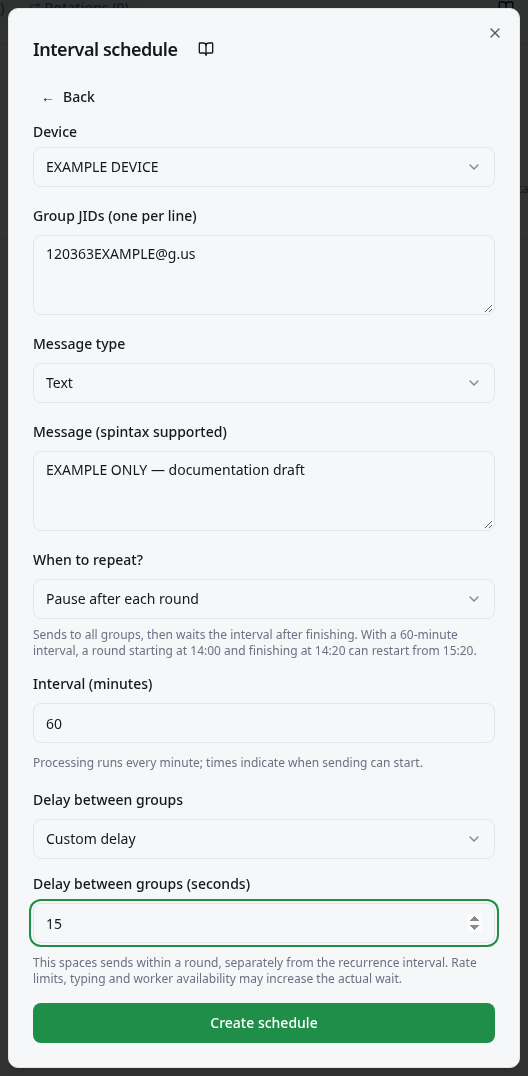
- Select the sending device, or review the device prefilled from your selection. Changing it clears the selected groups.
- Review the selected group names and codes. When creating manually, paste full codes into Group JIDs (one per line).
- Choose Text under Message type for this example.
- Fill in Message (spintax supported) with your notice. Spintax allows variations; read its guide before using it.
- Under When to repeat?, choose Pause after each round, Count from the start of the round, or Continuously. For the first two modes, enter 1–1,440 minutes. This controls when the next round can begin.
- Under Delay between groups, choose Use Settings delay or Custom delay. For a custom delay, enter a whole number of seconds from 1 to 300. Then select Create schedule. It starts switched off.
- Enable Toggle schedule on the card. For Continuously, read and confirm that repetition continues until you deactivate it.
- To change repetition or Delay between groups, deactivate sending, choose Edit repetition, and save. Review before reactivating. If a round is already underway, the new delay takes effect from the next round; the paused round keeps its original delay.
Interval schedule
Example data
Worked example
Example: a round starts at 14:00 and finishes at 14:45. A 15-minute pause allows the next round from 15:00. Counting 60 minutes from the start keeps the 14:00, 15:00, 16:00 schedule. Continuous sending returns to the first group after finishing, while preserving delays between messages.
How to check it worked
The card shows the selected mode, round progress, and next run when available. Check the message in the group; processed progress alone does not prove receipt.
What to know
- A group identifier, or JID, is the code ending in @g.us shown in Groups. An invitation link or participant phone number cannot replace it.
- For media, select the type and Media file; use a caption when available. Deactivate to prevent new attempts. An attempt already sent may finish. Delete removes the schedule.
- Processing runs every minute. Times indicate when a round can start, without guaranteeing an exact second. Last sent indicates a processed round, not delivery to every group.
- Pause after each round counts the minutes after all groups have finished. Existing schedules keep this mode. If round duration varies, the next start time also varies.
- Count from the start of the round keeps intervals anchored to the first start. If a round runs past a scheduled time, that time is skipped. Rounds do not overlap, and missed rounds do not accumulate for a catch-up burst.
- Continuously returns to the first group without an extra pause between rounds. Delays between messages still apply; the next server execution may add a wait. Daily rotation has a different purpose: sending once per group per day.
- This schedule runs on the server with the page closed and saves progress between executions. This applies to these group schedules; campaigns follow their own guide.
- If an attempt cannot be confirmed, sending is deactivated to avoid an automatic resend. Check the group conversation and choose Reviewed conversation; continue. This acknowledgement skips the uncertain group in this round, even if the message is missing. Reactivate to continue with the remaining groups; the card keeps a count of skipped uncertain sends.
- The delay between messages spaces sends to groups within a round. Using the global setting follows the message delay in Settings; a custom value applies only to this recurring schedule. It is separate from the repetition mode, which controls the next round. Daily rotations do not have this custom delay.
- A delay is not an exact delivery interval or protection against WhatsApp restrictions or bans. Rate limits, typing simulation and server processing can make the actual spacing longer.
Common problems
- What you see
- The schedule was created, but nothing was sent.
- What to do
- Check its toggle, sending access, and connected device.
- What to expect
- The schedule is ready to run, or the unresolved condition is identified.
- What you see
- The destination does not work.
- What to do
- Copy the full group code from Groups and check the device’s membership.
- What to expect
- The destination matches a group accessible to the device.
- What you see
- I need to stop the notices.
- What to do
- Switch off Toggle schedule on the card.
- What to expect
- Future runs are disabled.
Get more help
If nothing is sent, check the conversation and connection before creating a duplicate schedule.