Sending and automation
Daily message rotation
Choose one saved message for each group each day.
Before you begin
Have active access, a connected device and a saved sequence. Select live groups in either layout, or use manual codes or a saved group list in Schedules. A sequence is a set of messages available for random selection.
What to do
- Open Groups in either layout.
- Select Schedules.
- Select New. Alternatively, select live group checkboxes in either layout and choose Create send.
- Choose Daily rotation.
- Fill in Name.
- Select the sending device, or review the device prefilled from your selection. Changing it clears the selected groups.
- Choose Message sequence (pool). Pool means the set for random selection.
- Review the selected group names and codes. When creating manually, choose Manual JIDs and paste one group code per line, or From a list to select a saved list.
- Choose Slots per day: each slot is a time period.
- Select Time zone.
- Fill in Spacing within the same slot (seconds) to separate groups assigned to the same period.
- Select Create rotation. It starts switched off.
- Enable Toggle rotation on the card.
Rotation form
Example data
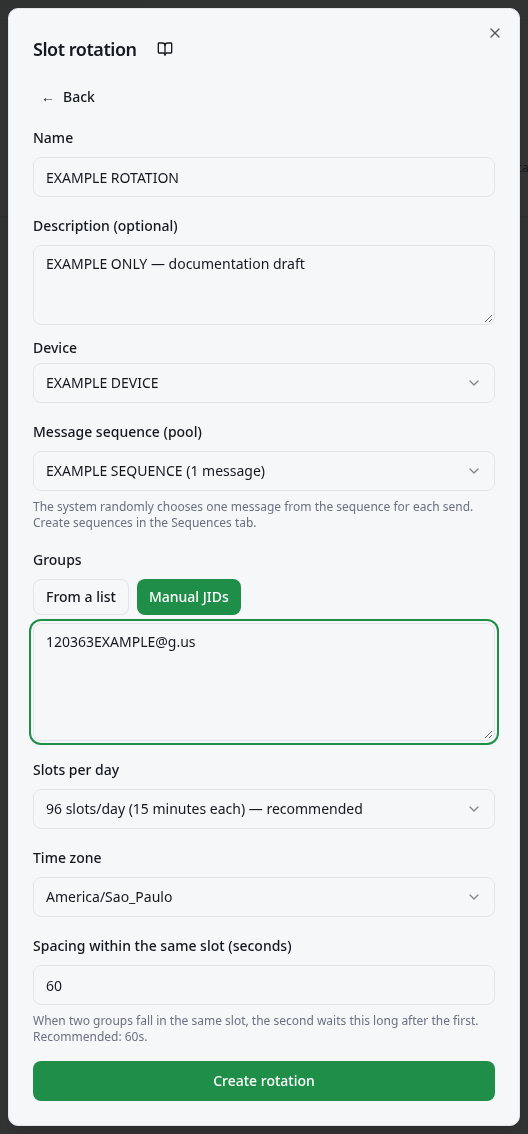
Worked example
Fictional example: name Test notices, two of your groups, a sequence with two notices, 96 slots, America/Sao_Paulo, and 60 seconds of spacing. Each group gets one message; 120363XXXXX@g.us and 120363YYYYY@g.us illustrate the code format.
How to check it worked
The card shows an enabled rotation. Use Expand to check today’s plan and results; confirm the content in the group conversations.
What to know
- The rotation plans one send per group per day and randomly selects one sequence message for each send. It does not send the entire sequence to every group.
- 24 slots divide the day into one-hour periods; 48 into 30 minutes; 96 into 15 minutes. Group times change daily.
- Switch off Toggle rotation to stop future runs. Delete removes the rotation and its send history.
- When creating from group selection, the active group filters apply to both daily rotations and interval schedules. Review any omitted-selection count. Changing filters later does not change this saved rotation. The custom delay between messages for recurring schedules is not a daily rotation setting; use Spacing within the same slot (seconds) here.
Common problems
- What you see
- Create a sequence first.
- What to do
- Open Sequences and save messages before returning to the form.
- What to expect
- The sequence becomes available to select.
- What you see
- Create a list first.
- What to do
- Select Manual JIDs if you have the codes, or create a list in Comfort.
- What to expect
- You specify groups without requiring a saved list.
- What you see
- Today shows errors or no sends.
- What to do
- Check connection, access, time zone, and results under Expand.
- What to expect
- You distinguish a planned send from a failure to resolve.
Get more help
Use Interval schedule to repeat the same notice throughout the day.